

How to Run Reports and Reconcile Earnings
Unlock your organization’s earning data! With reports, you can track your organization’s earnings from gift cards and shopping online. Find detailed report descriptions, a monthly reconciliation guide, and instructions on running reports below.
Please note: Transactions may take a few extra days to appear in reporting while we launch the new FlipGive experience.
Reports Guide
Get in-depth descriptions, use cases, and more for each report available on the Coordinator Dashboard.
* = Recommended Report
Earnings Summary by Participant
Total earnings per participant
Description
The Earnings Summary by Participant report lists total earnings per participant in your organization during a selected period. Find the number of orders and total face value, net cost, and earnings of all orders placed by each participant in your organization. The total order face value, net cost, and earnings are listed at the bottom of the report.
Use Case
Use this report to reconcile monthly earning deposits to your organization and for paying out earnings to participants.
Best For
All organizations
Non-Gift Card Earnings by Participant
Total online shopping earnings for all participants in your organization
Description
The Non-Gift Card Earnings by Participant report lists total earnings per participant from shopping online. For every participant in your organization that earned by shopping online, you’ll find the date earned, earnings amount, and earnings ID.
Use Case
Use this report to track participants' earnings from shopping online.
Best For
All organizations
Monthly Deposit Slip
Earnings from all participant orders
Description
The Monthly Deposit Slip report lists all participant earnings from eGift cards and online shopping purchases during a selected date range. The report further breaks down each deposit period by week and includes the confirmation number, participant order number, order date, earnings ID, earnings type, earnings, deposit date, and deposit amount.
Use Case
Use this report to reconcile the earnings from participant orders to your organization's monthly payout.
Best For
All organizations
Order History by Participant
Gift card and online shopping order history and earning totals for each participant in your program
Description
The Order History by Participant report lists gift card and online shopping order history and earning totals for each participant that placed an order during a selected date range. You can filter this report by Virtual (eGift cards) and Shop Online. Participant orders are organized by order date and include the order number, face value, net cost, and earnings. You’ll also find the total order face value, net cost, and earnings for each participant and your organization in this report.
Use Case
Use this report to reference a participant's order.
Best For
All organizations
Order History by Participant and Product
Gift card and online shopping order history and earning totals for each participant in your program
Description
The Order History by Participant and Product report lists gift card and online shopping order history and earning totals for each participant in your program during a selected date range. You can filter this report by Virtual (eGift cards) and Shop Online. It also provides more detail into participant order history for gift cards and shopping online.
Use Case
Use this report to reference an order when a participant has a question about a purchase on their FlipGive account.
Best For
All organizations
Participant Summary and Email List
List of emails and account information for the participants registered to your FlipGive program
Description
The Participant Summary and Email List report lists all participants registered to your FlipGive program and includes basic information, including their username, email address, account status, registration date, classroom/teacher, and student.
Use Case
Use the Participant Summary and Email List report to gather basic information about the participants registered to your program. For example, you might want to know how many of your program's participants are active.
Best For
All organizations
Participant Mail Merge Summary
A list of mailing information for participants in your FlipGive program
Description
The Participant Mailing Info report lists contact information for all participants registered to your program. The report includes mailing address, email address, phone number, custom ID, student, delivery method, and classroom for each participant.
Use Case
Use this report to gather contact information for participants registered to your program. For example, you can use this report to quickly find mailing information to distribute cheques for earnings payouts.
Best For
All organizations
Organization Enrollment Cards
Printable page of ten cards with your organization name and enrollment code
Description
The Organization Enrollment Cards report is a printable page of ten custom cards with your organization name and enrollment code. This page is compatible with Avery® Template 8371 Business Cards (2” x 3.5”).
Use Case
Download and print this report to easily share your organization’s FlipGive enrollment code with prospective participants at in-person events or meetings.
Best For
All organizations
Earnings Summary by Participant
Total earnings per participant
Description
The Earnings Summary by Participant report lists total earnings per participant in your organization during a selected period. Find the number of orders and total face value, net cost, and earnings of all orders placed by each participant in your organization. The total order face value, net cost, and earnings are listed at the bottom of the report.
Use Case
Use this report to reconcile monthly earning deposits to your organization and for paying out earnings to participants.
Best For
All organizations
Non-Gift Card Earnings by Participant
Total online shopping earnings for all participants in your organization
Description
The Non-Gift Card Earnings by Participant report lists total earnings per participant from shopping online. For every participant in your organization that earned by shopping online, you’ll find the date earned, earnings amount, and earnings ID.
Use Case
Use this report to track participants' earnings from shopping online.
Best For
All organizations
Monthly Deposit Slip
Earnings from all participant orders
Description
The Monthly Deposit Slip report lists all participant earnings from eGift cards and online shopping purchases during a selected date range. The report further breaks down each deposit period by week and includes the confirmation number, participant order number, order date, earnings ID, earnings type, earnings, deposit date, and deposit amount.
Use Case
Use this report to reconcile the earnings from participant orders to your organization's monthly payout.
Best For
All organizations
Order History by Participant
Gift card and online shopping order history and earning totals for each participant in your program
Description
The Order History by Participant report lists gift card and online shopping order history and earning totals for each participant that placed an order during a selected date range. You can filter this report by Virtual (eGift cards) and Shop Online. Participant orders are organized by order date and include the order number, face value, net cost, and earnings. You’ll also find the total order face value, net cost, and earnings for each participant and your organization in this report.
Use Case
Use this report to reference a participant's order.
Best For
All organizations
Order History by Participant and Product
Gift card and online shopping order history and earning totals for each participant in your program
Description
The Order History by Participant and Product report lists gift card and online shopping order history and earning totals for each participant in your program during a selected date range. You can filter this report by Virtual (eGift cards) and Shop Online. It also provides more detail into participant order history for gift cards and shopping online.
Use Case
Use this report to reference an order when a participant has a question about a purchase on their FlipGive account.
Best For
All organizations
Participant Summary and Email List
List of emails and account information for the participants registered to your FlipGive program
Description
The Participant Summary and Email List report lists all participants registered to your FlipGive program and includes basic information, including their username, email address, account status, registration date, classroom/teacher, and student.
Use Case
Use the Participant Summary and Email List report to gather basic information about the participants registered to your program. For example, you might want to know how many of your program's participants are active.
Best For
All organizations
Participant Mail Merge Summary
A list of mailing information for participants in your FlipGive program
Description
The Participant Mailing Info report lists contact information for all participants registered to your program. The report includes mailing address, email address, phone number, custom ID, student, delivery method, and classroom for each participant.
Use Case
Use this report to gather contact information for participants registered to your program. For example, you can use this report to quickly find mailing information to distribute cheques for earnings payouts.
Best For
All organizations
Organization Enrollment Cards
Printable page of ten cards with your organization name and enrollment code
Description
The Organization Enrollment Cards report is a printable page of ten custom cards with your organization name and enrollment code. This page is compatible with Avery® Template 8371 Business Cards (2” x 3.5”).
Use Case
Download and print this report to easily share your organization’s FlipGive enrollment code with prospective participants at in-person events or meetings.
Best For
All organizations
Monthly Reconciliation Guide
How to use coordinator reports to reconcile your organization’s earnings and deposits.
For EFT Payment Methods: How to tie the earnings deposited to your organization's account with earnings from participant orders
You'll need to use two reports to confirm that your organization’s earnings deposit amount matches earnings from participant orders.
- Run the Monthly Deposit Slip report to view your organization's deposit for earnings from participants’ orders, which includes eGift cards and online shopping purchases.
- On the Reports Selection page, enter the payout date range, select an output format, and click “Run Report.”
- Confirm that the total expected earnings deposit (found at the bottom of the report) matches the amount deposited to your organization’s chequing account.
Next, follow these steps to tie the total expected earnings amount with participant orders:
- Run the Order History by Participant report.
- Filter Product Type by “Virtual” (eGift cards) and “Shop Online.”
- Enter the same payout range you used for the Monthly Deposit Slip report, select an output format, and click “Run Report.”
- Confirm that your organization’s deposits from the Monthly Deposit Slip report match the expected earnings amount found in the Order History by Participant report.
Please note: The “Earned Date” listed for online earnings does not reflect the actual date the transaction took place.
For Cheque Payment Methods: How to tie the earnings from your organization's payout cheque with earnings from participant orders
To tie earnings from your organization's payout cheque with earnings from participant orders, follow these steps:
- Run the Earnings Summary by Participant report to view your organization's deposit for earnings from participants’ orders, which includes eGift cards and online shopping purchases.
- On the Reports Selection page, enter the payout date range, select an output format, and click “Run Report.”
- Confirm that the total Rebate (also known as the earnings amount) found at the bottom of the report matches the physical payout cheque that your organization received.
Please note: The “Earned Date” listed for online earnings does not reflect the actual date the transaction took place.
How to determine earnings received from individual participants
To tie earnings from a deposit back to individual participant accounts, follow these steps:
- Run the Earnings Summary by Participant report.
- On the Reports Selection page, enter your payout date range, select an output format (.csv is recommended), and click “Run Report.”
- Once you open your report, identify the Family, Student*, and Earnings columns.
- For each participant, multiply their total earnings (found in the Earnings column) by the percentage your organization shares with your participants.
Example: If your organization shares 70% of earnings back with your participants, someone who earned $1,000 would receive $700 back to use toward tuition, uniforms, etc.
(Tip! Select .csv or .xls as the report output format so you can use formulas to quickly calculate each participant's earnings).
*Please note: The Student column is important to review since earnings from multiple participants may go toward the same student. For example, a student’s grandparent might be earning for their tuition, in addition to the student’s parent. In this case, you’ll find the student’s name in the Student column next to the grandparent's name (found in the Family column). The grandparent’s earnings will go towards their grandchild’s tuition at the time of distribution.
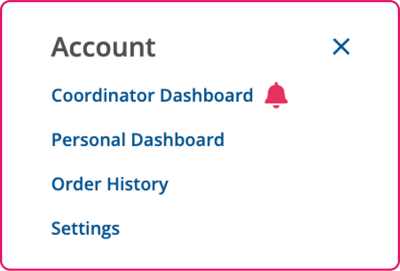
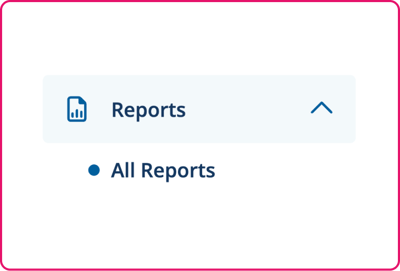
Step 2: Click the Reports dropdown in the Main Menu
Select "All Reports" to find a list of report options.
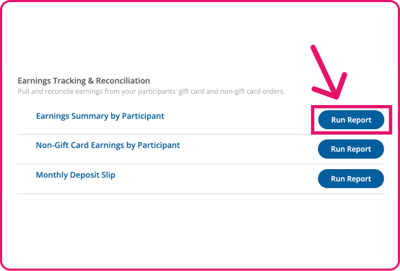
Step 3: Select "Run Report" next to the report you'd like to download
The Report Selection page will load so you can customize your report with filters.
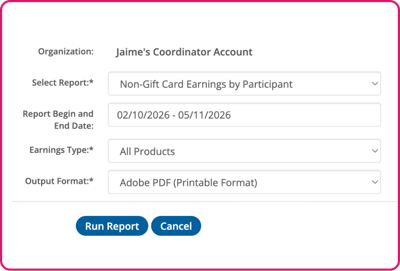
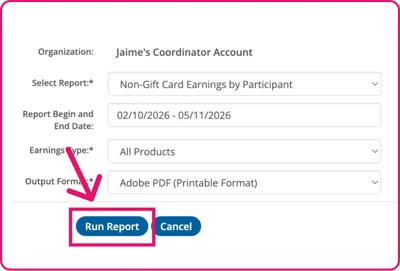
Step 4: Filter your report and select an output format
On the Report Selection page, customize the report even further with filters and by selecting an output format. Note that available filters and output formats vary by report.
Get reminders to earn with eGift cards
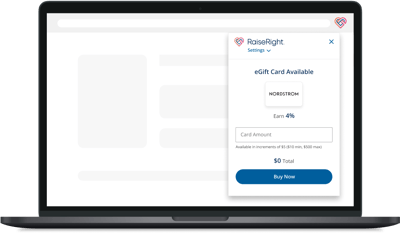
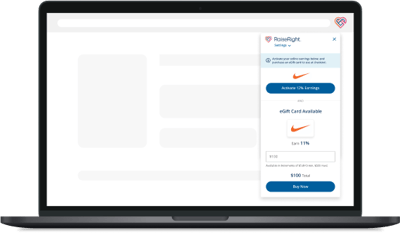
While shopping your favorite brands’ websites, we’ll alert you if gift card earnings are available. Click "Buy Now" on the extension to log into your RaiseRight account and buy an eGift card. Then return to your shopping window and apply the gift card as payment at checkout.
Earn, then earn again
For many brands, you can earn twice in one purchase by activating online earnings and buying a gift card from RaiseRight to use as payment during checkout.
How It Works
See how to run reports by watching this video.