
Skip to content

 How to Enable in Safari

To get started, launch the Safari app on your iOS mobile device and navigate to a brand’s website.
Please note: You’ll need an iPhone with iOS15 or later, and FlipGive mobile app version 3.0.0 or later.
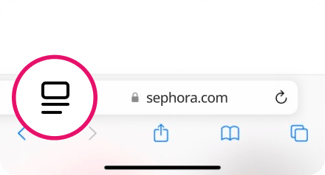
Sephora.com on Safari iPhone
Step 1: Tap the Page Settings icon

On some iOS versions this may be an Aa icon or a puzzle piece icon. I don’t see an icon >
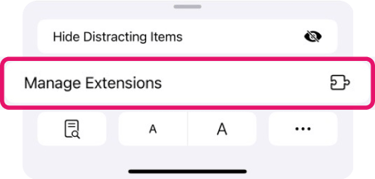
Manage Extensions on Safari iPhone
Step 2: Select Manage Extensions

If you have the FlipGive mobile app installed (version 3.0.0 or later), it will be listed here.

Manage Extensions on Safari iPhone | Toggle ON FlipGive Extension
Step 3: Toggle FlipGive ON

This adds the FlipGive Earnings Extension to your Safari mobile browser.
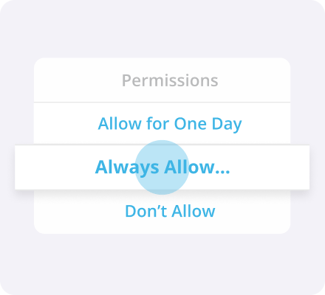
Permissions | Allow for One Day | Always Allow | Don't Allow
Step 4: Follow the extra steps to allow permissions

This lets us notify you about available earnings when you shop online in Safari.


FAQs

Does the extension work if I shop directly in a brand’s app?

No, the extension will only display earning opportunities when shopping directly on a brand’s website in your browser.

I don’t see a Page Settings icon in my Safari search bar. How can I install the extension?

If you are using iOS15 or iOS16, follow these instructions:

  1. Open the Settings app.
  2. Scroll down and select Safari.
  3. Tap on Extensions.*
  4. Find FlipGive in the list and toggle it on to activate.
  5. Open Safari and visit any webpage to confirm the extension is working. Or, if prompted to allow additional permissions for the extension, tap Allow.

*If FlipGive's extension appears greyed out in Settings > Safari > Extensions, you may have some restrictions enabled on your iPhone that will need updating:

  1. Go to Settings > Screen Time > Content & Privacy Restrictions (enter your passcode if required).
  2. Scroll down to the Content Restrictions section.
  3. In Content Restrictions, go to Web Content. You'll need to set it to Unrestricted Access in order to activate FlipGive. Alternatively, you can just turn Content & Privacy Restrictions off.

You should now be able to turn on the FlipGive extension in iOS Settings > Safari > Extensions.

I toggled the FlipGive extension ‘ON’ in Safari. How do I allow permissions for the extension to find earnings?

If you added the extension to your Safari browsers but did not allow permissions, please visit https://www.flipgive.com/m/extension-mobile-installed for step-by-step instructions.

I have an Android device. Can I install the mobile browser extension to my phone?

Currently the mobile version of the FlipGive Earnings Extension is only available for Safari on iOS devices. If you would like to shop and earn with the browser extension on your laptop or computer, it is available to install for free to Google Chrome and Microsoft Edge desktop browsers.